

How to Convert Screenshots, Photos, and Handwritten Notes to Editable Text
Extract editable text from screenshots with FreeAIOCR, check the OCR result, and copy or export it. Includes tips for photos and handwriting.
What you will learn
Turn a screenshot of an app or webpage into editable text without typing it out again. The same method works for clear photographs and legible handwritten notes.
You need a browser and one image. The image-to-text tool accepts PNG, JPG/JPEG, WebP, HEIC/HEIF and BMP, with a 10 MB limit per image. It handles one image at a time, not an entire PDF document.
Step 1: Choose a readable screenshot
Use the weekly-planning screenshot already shown in the tool's examples:
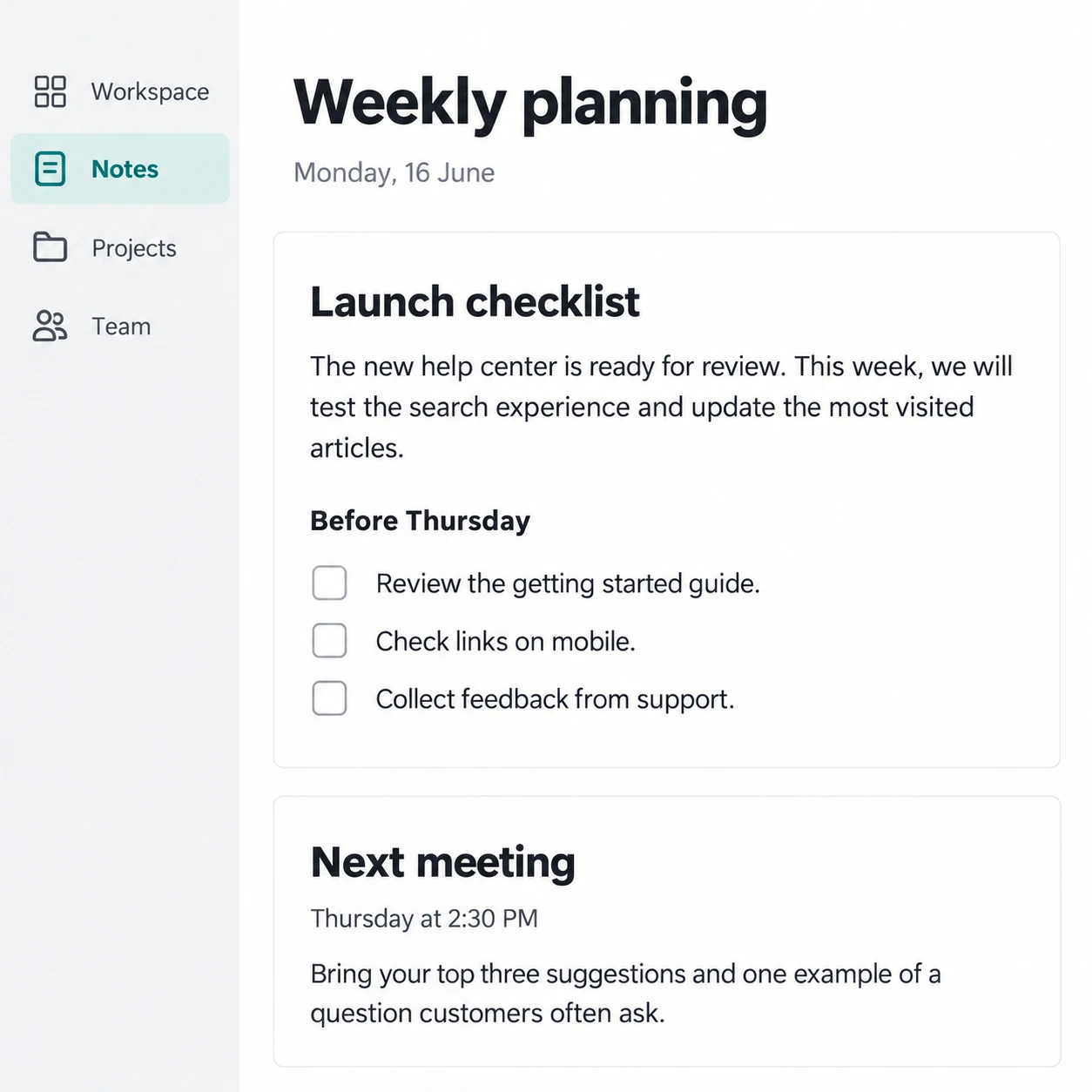
Choose an image with readable text. Cropping unused borders is optional: AI OCR can usually recognize clear words well even when the borders remain.
Step 2: Upload or paste
Open FreeAIOCR Image to Text. Choose Browse image in the upload area, drag a file onto it, or paste an image from your clipboard.
Check the preview and leave the tool set to Image to Text. If verification is requested, follow the instructions on the screen.
Step 3: Extract and check the text
Select Extract Text and wait for the result. Compare it with the original screenshot, paying attention to:
- Heading and paragraph order
- Dates, numbers and names
- Lists, line breaks and missing words
This is the existing result image paired with the example screenshot on the tool page:
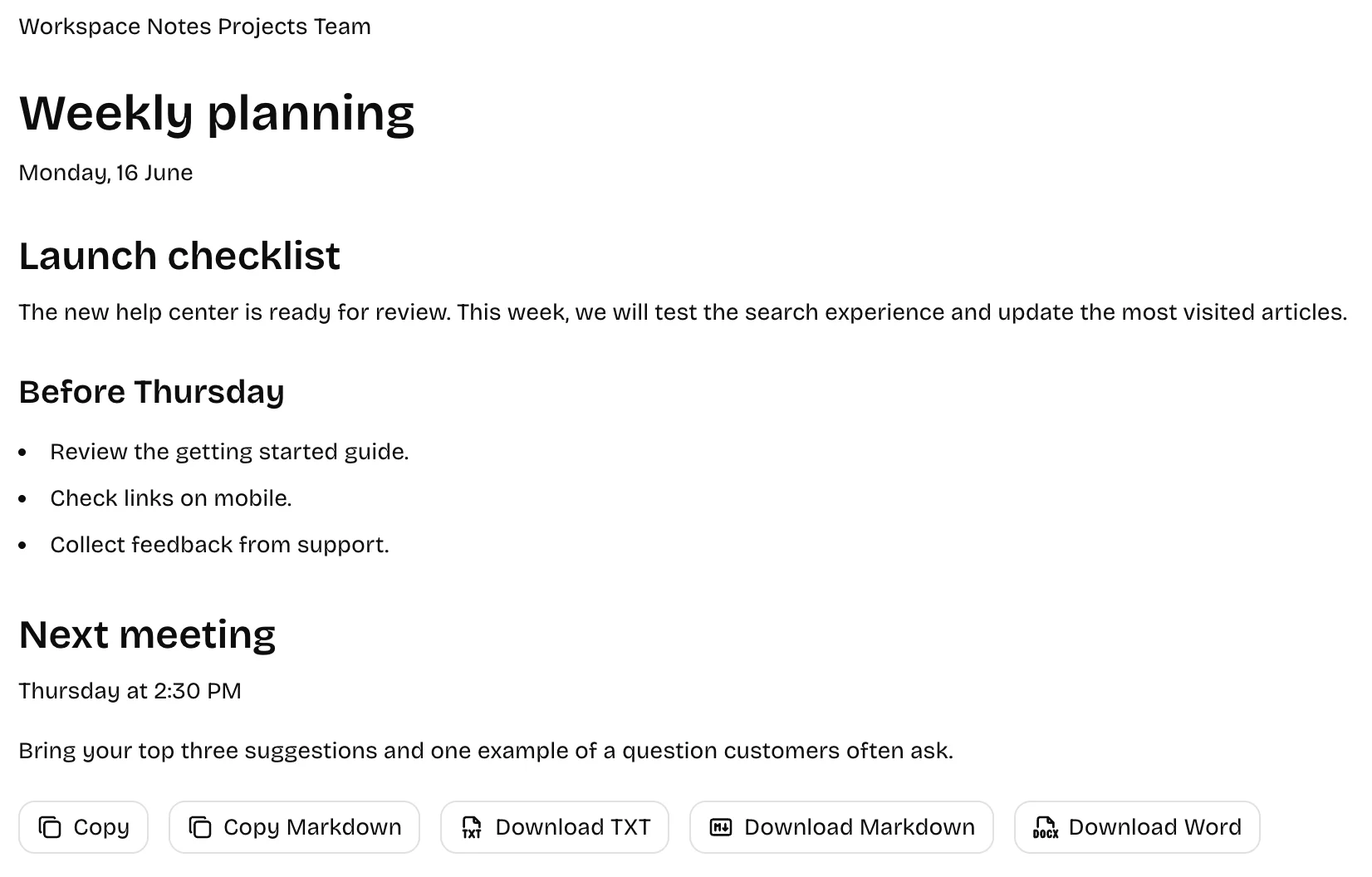
The illustration shows the result interface; always inspect your actual OCR output. AI OCR aims to retain the source's headings, paragraphs, lists and reading order, though complex layouts may need adjustments.
Markdown excerpt from the example
The following is an excerpt copied with Copy Markdown, showing the structure of headings, paragraphs and bullet points.
# Weekly planning

Monday, 16 June

## Launch checklist

The new help center is ready for review.

### Before Thursday

- Review the getting started guide.
- Check links on mobile.
- Collect feedback from support.

## Next meeting

Thursday at 2:30 PM
Step 4: Copy or download
Use Copy for plain text, or Copy Markdown for text with headings and lists. You can also download TXT, Markdown or an editable Word file.
Open the downloaded file to continue editing or organizing the extracted text.
Photos, handwriting and common problems
For a photograph, keep the page flat, use even lighting and avoid reflections. For handwriting, make sure the letters are large and distinct. Blurry or skewed images, difficult handwriting and complex layouts can need manual correction.
If you need a grid of cells as a reusable table, use Image to Table. For mathematical equations in LaTeX, use Math Image to LaTeX instead.
Ready to try your own screenshot? Open Image to Text.