

Introducing FreeAIOCR: AI-Powered OCR for Text, Tables, and Structured Data
Meet FreeAIOCR's three main OCR tools: turn images into editable text, reconstruct tables, or extract selected fields from receipts and forms.
A photo could show a printed document, a sales report, or a store receipt. They all contain text, yet the useful output differs: editable paragraphs, a table with its rows and columns intact, or just a few key values.
FreeAIOCR is a collection of AI-powered image recognition tools. Its three main tools help you turn visual information into reusable text, tables, and structured fields.
Three main tools, three different outcomes
1. Text: Turn image text into editable content
Image to Text is useful for meeting whiteboard photos, lecture handouts, excerpts from books, and text on posters. It turns those images into content you can edit or organize.
Results are presented with headings, paragraphs, and lists where possible, while preserving reading order. You can copy the text, save Markdown, or export an editable Word (.docx) document. Word export creates actual headings, paragraphs, lists, and tables rather than showing raw Markdown markers; complex layouts may still need checking against the image.
For example, take a printed page with a heading and several paragraphs. Comparing the image with the extracted result makes it easier to check the reading order.
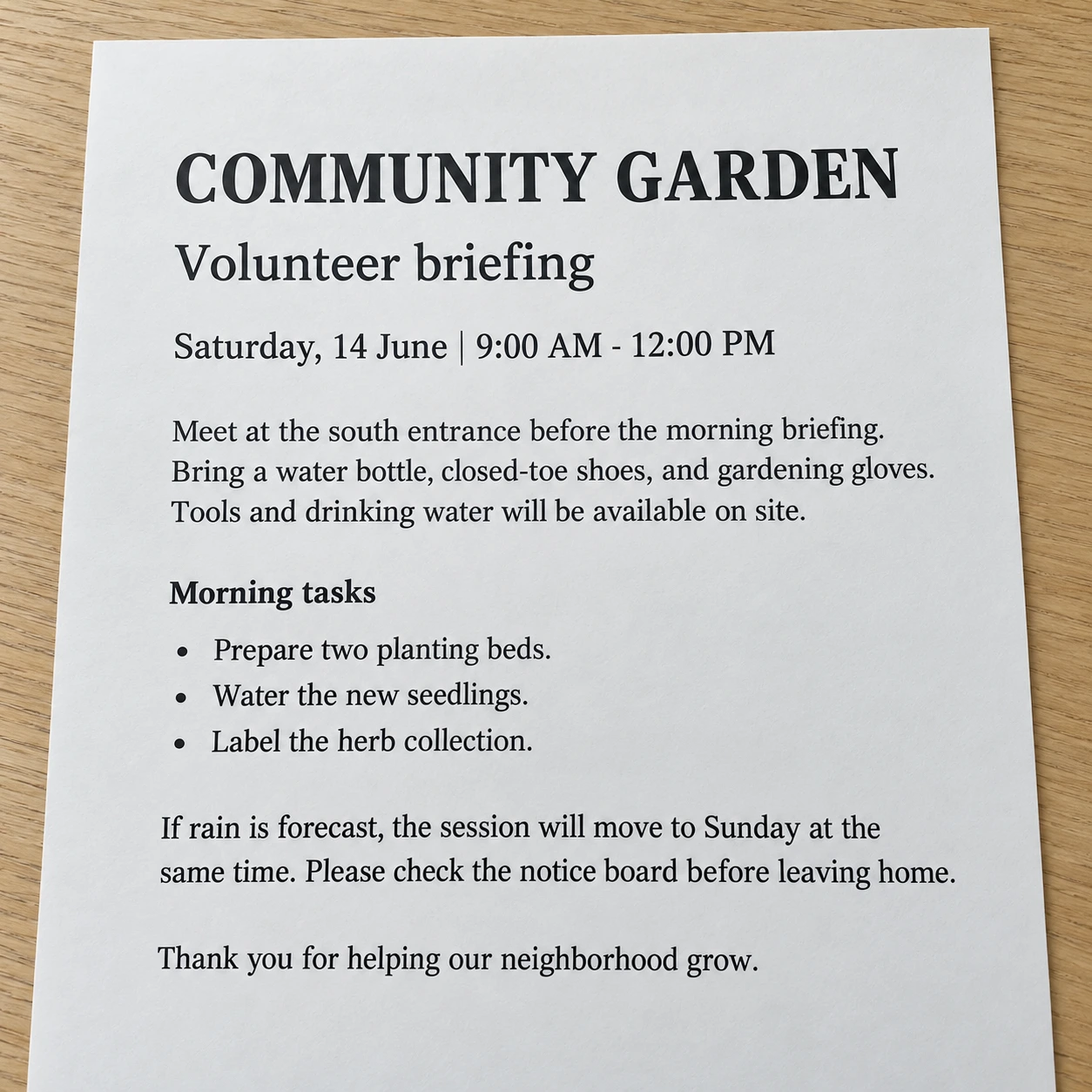
Source image: a printed page; notice its heading, paragraphs, and reading order.
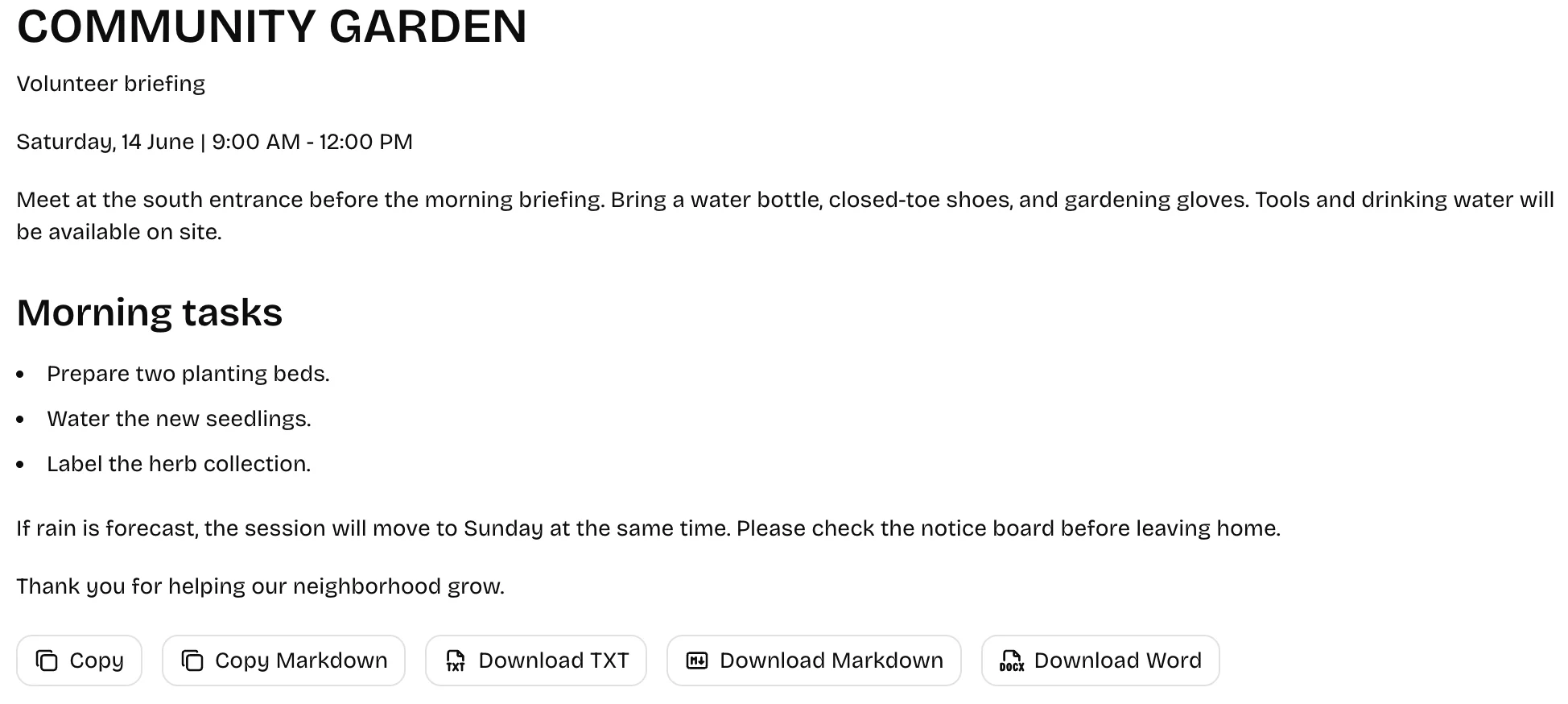
Example OCR output: compare wording, heading levels, and paragraph breaks with the original; complex layouts can require edits.
Best for editable text, Markdown, or a structured Word document. Double-check names, numbers, punctuation, and reading order.
2. Table: Restore the rows and columns of a table
Image to Table — A sales report or price list needs more than recognized characters: each figure must stay in the correct cell. The table tool returns Markdown or HTML tables. Markdown suits ordinary layouts; HTML can represent merged cells.
Consider this weekly staff schedule: some activities span multiple time slots, so preserving merged cells is as important as reading the text.
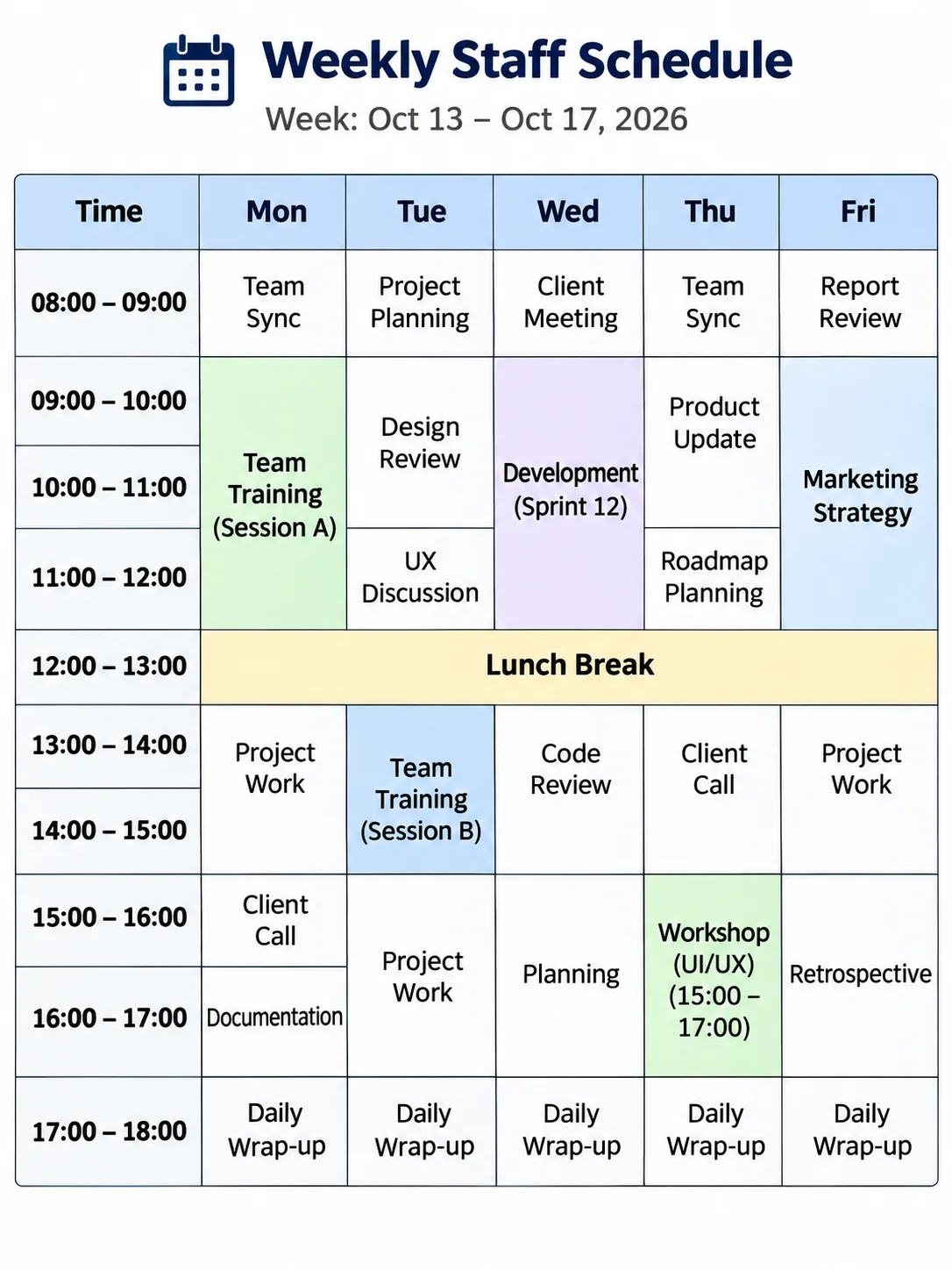
Source image: a weekly staff timetable with multi-hour activities and merged cells.
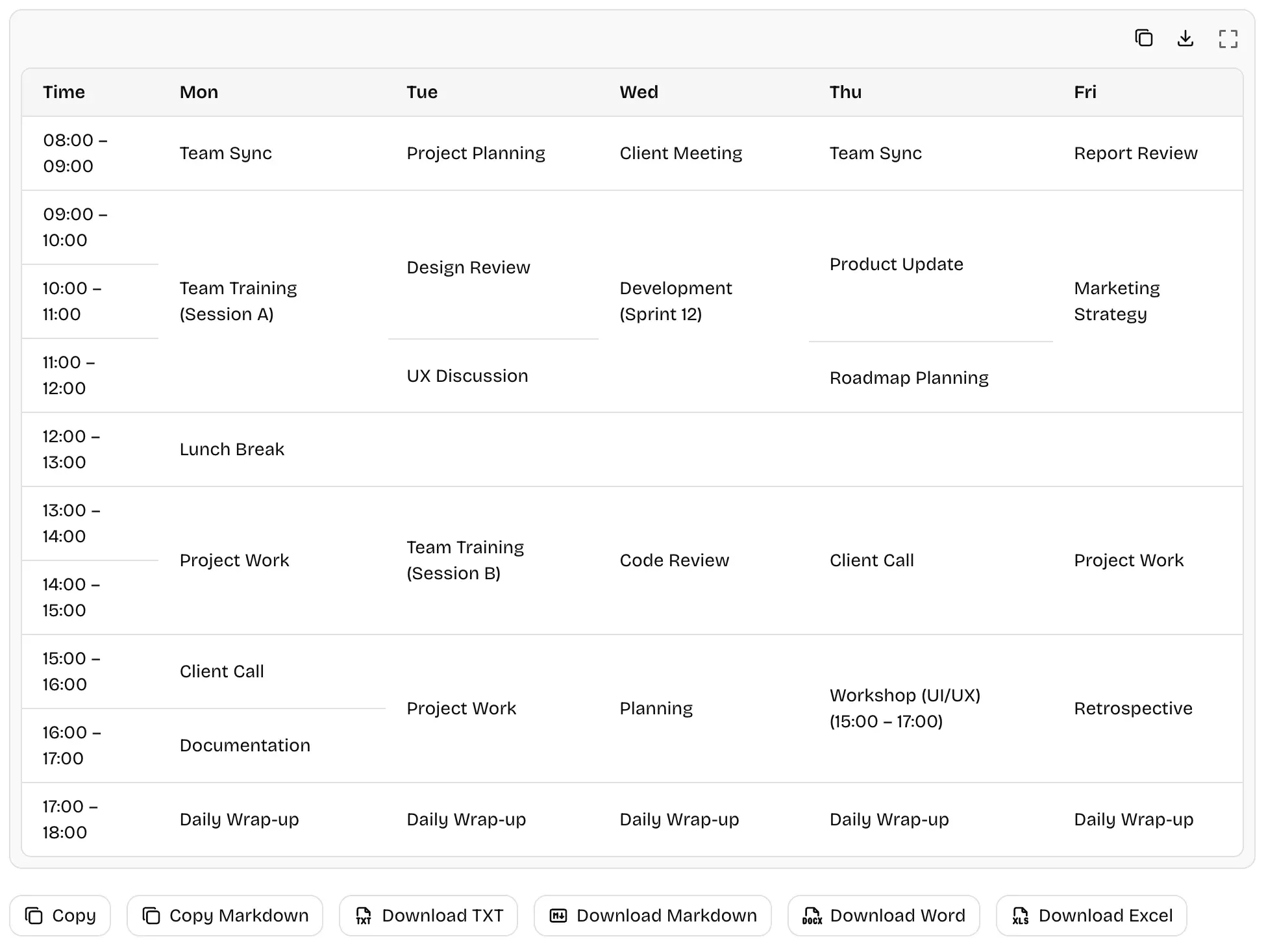
Example OCR output: compare time slots, activity names, and merged-cell positions with the source image.
Best for an editable table structure. A neat layout does not guarantee correct figures.
After recognition, you can also download an Excel (.xlsx) file with rows, columns, and merged cells. If there are multiple tables, each gets its own worksheet. Cell contents are stored as text, so verify numbers before calculating with them.
3. Structured Data: Extract specific fields from an image
Image Data Extraction — With a receipt, form, or business card, you may need only the merchant, date, or amount. The structured-data tool can select important fields automatically or extract the exact fields you request, returning field names paired with values.
For a store receipt, compare the original with the extracted merchant, tax, total, and other fields.
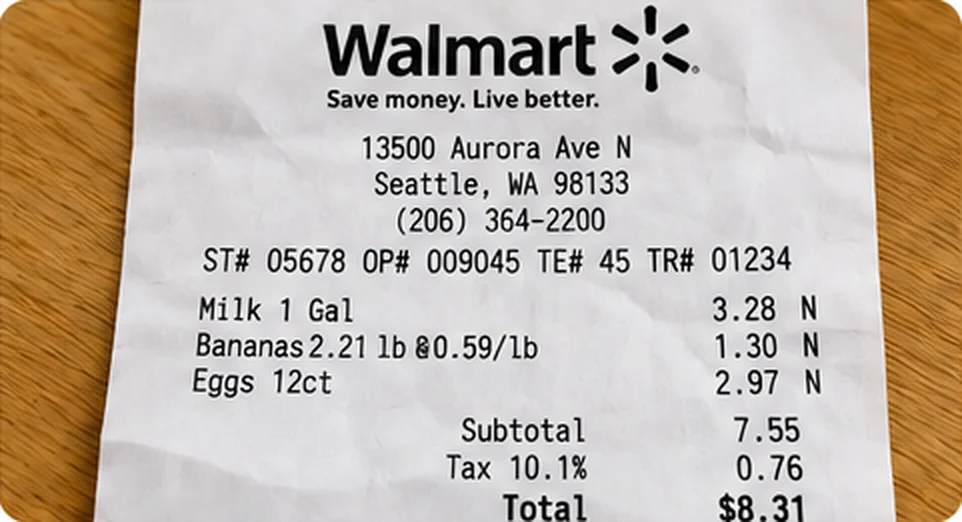
Source image: a receipt; details such as merchant, tax, and total may be the important data.
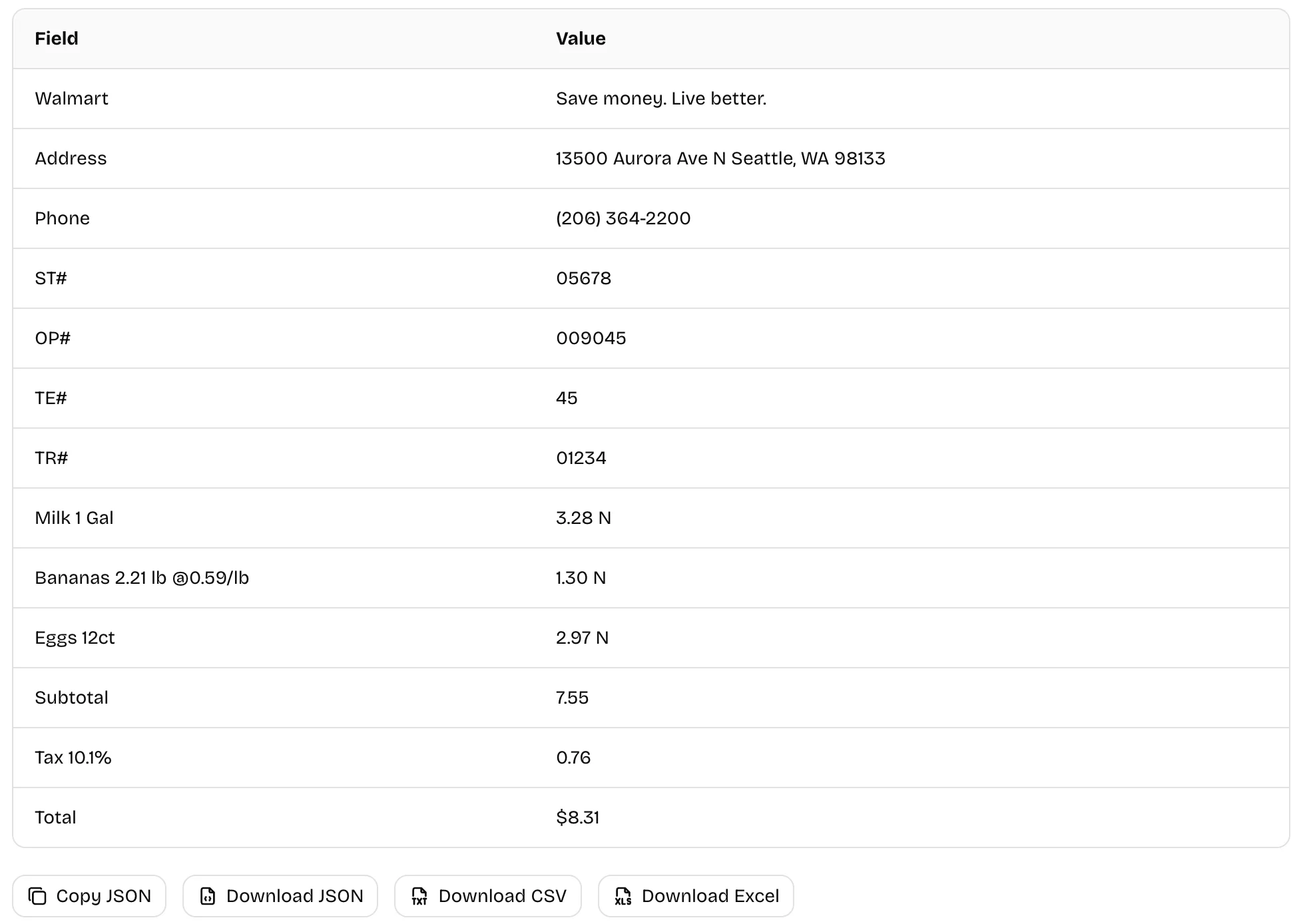
Example output: verify each field against the receipt, especially dates, amounts, and missing or unreadable values.
Best for field–value data rather than a full transcription. Check each value against its source.
You can download the extracted data as Excel (.xlsx), CSV, or JSON. Excel lists field names and their values in two columns; it does not recreate the receipt's original layout.
Specialized tools for code and mathematics
Beyond text, tables, and field extraction, FreeAIOCR also helps with two more specific kinds of content:
- Extract Code from Image: Turn a code screenshot into editable source; check indentation, brackets, and symbols
- Math Image to LaTeX: Convert formula images into editable LaTeX; verify subscripts, fractions, and operators
These tools do more than recognize characters: the output format has to work for the next step.
Who can use FreeAIOCR?
Students can extract text from photos of their notes. Office workers can convert a report screenshot into an editable table. People entering receipt or form data can focus on selected fields instead of copying everything.
Before choosing, ask yourself: Do I need the whole text, a complete table, or a few fields? The required output matters more than the type of image.
What to know before using it
- Check the result: Blur, occlusion, handwriting, and complicated layouts can cause omissions, inaccurate numbers, or misplaced structure. Carefully verify financial and other critical information
- One image at a time on the website: PNG, JPEG, WebP, HEIC/HEIF, and BMP are supported, up to 10 MB per original file. The website does not yet offer direct upload of an entire PDF or processing multiple images in one batch
- Third-party AI processing: Images are processed through Google's paid AI API, whose terms may allow limited retention. Before uploading sensitive content, read the Privacy Policy
Start with the output you need
To edit text, open Image to Text; To preserve rows and columns, choose Image to Table; For selected fields, try Image Data Extraction.
Start with an image whose text is clear and fully visible. Check the result against the original before copying or saving it.